![Navix Logo - Purple-1.png]](https://hs.navix.io/hs-fs/hubfs/Navix%20Logo%20-%20Purple-1.png?height=50&name=Navix%20Logo%20-%20Purple-1.png)
Overview
How to Enable Notify and Approve
What Does Notify and Approve Automate
Overview
Notify and Approve is a Disputes feature that combines multiple manual steps into a single action for dispute scenarios where you aren't waiting on a response from the disputed party.
In the traditional dispute workflow, a user creates a dispute, waits for the dispute party to respond with the necessary information, and then determines how to proceed in closing out the dispute. That back-and-forth is essential when a response is required — but not every dispute needs one.
Consider a common example: you're short paying an invoice and simply need to notify the vendor. There's no response to wait for, yet the workflow still requires you to manually create the dispute, close the dispute, and then approve the invoice when you're ready.
Notify and Approve accomplishes all of this in one click!
This feature is configured at the dispute reason level, so you control exactly which dispute types are eligible for the streamlined workflow. Below is a screenshot of how the dispute will look when creating a new dispute. You can see the Notify & Approve option or Save & Email.
-1.png?width=670&height=389&name=image%20(40)-1.png)
How to Enable Notify and Approve
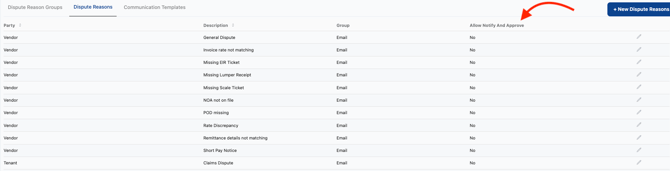
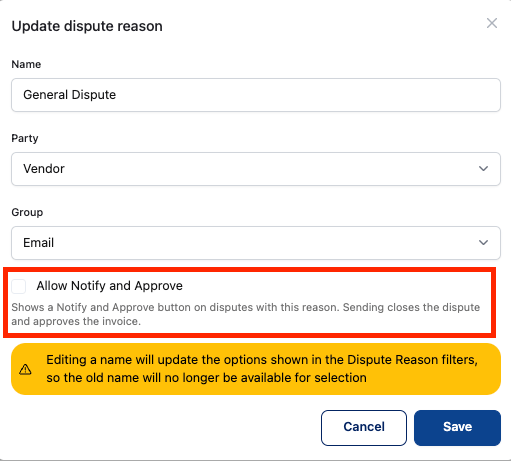
Notify and Approve is enabled per dispute group in the Tenant Admin section of Navix.
1. Navigate to Tenant Admin.
2. Open your Dispute Reason settings.
3. Select the dispute group you'd like to enable the feature for.
4. Set Allow Notify and Approve to Yes.
5. Save your changes.
Once saved, the Notify and Approve button will display on disputes belonging to that dispute group.
Dispute groups with Allow Notify and Approve set to No will continue to use the traditional dispute workflow, and the button will not display for them. You can enable the setting for as many or as few dispute groups as you'd like.
What Does Notify and Approve Automate?
When you click Notify and Approve, Navix completes the following steps in a single action:
1. Creates the dispute — the dispute record is generated and the dispute party is notified.
2. Closes the dispute — because no response is expected, the dispute is immediately closed out.
3. Approves the invoice — the invoice moves forward in the approval workflow.
Important behavior to know
-
The button is Dispute Reason specific. Notify and Approve only displays on dispute groups with the Allow Notify and Approve setting set to Yes. It will not display for any other dispute reasons.
-
The button respects approval blockers. Notify and Approve behaves the same way as the standard Approve button - it will be disabled if there are any existing approval blocking exceptions or work instructions on the invoice record at that time. Resolve those items first, and the button will become available.