![Navix Logo - Purple-1.png]](https://hs.navix.io/hs-fs/hubfs/Navix%20Logo%20-%20Purple-1.png?height=50&name=Navix%20Logo%20-%20Purple-1.png)
🚀 Key Benefits
🧩 What the Integration Includes
🔄 How the Integration Works
⚙️ Setup Overview
🛠️ FAQs
🧠 Additional Resources
🚀 Key Benefits
- Eliminate manual audit steps
- Speed up exception handling and dispute resolution
- Unlock meaningful analytics without lifting a finger
🧩 What the Integration Includes
|
Functionality |
Supported |
|
Shipments imported from MasterMind |
✅ |
|
Documents sent back to MasterMind |
✅ |
|
Rate/cost line items synced to Navix |
✅ |
|
Customer Invoices auto-created & sent in MasterMind |
✅ |
|
Carrier invoices approved in MasterMind |
✅ |
|
Multi-carrier (multivendor) loads supported |
✅ |
|
Rate Engine Connection |
❌ |
|
Disputes Integration |
❌ |
🔄 How the Integration Works
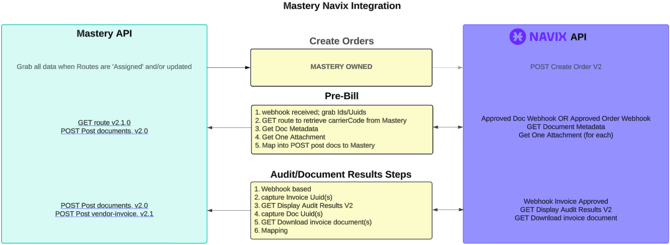
This integration has three legs, and it's important to understand that data doesn't flow the same direction on all three.
1. Order Creation (MasterMind TMS → Navix)
An order is created in Navix when a Route_Vendor Added event fires in MasterMind TMS; in other words, as soon as a carrier/vendor is assigned to a route. For that call to succeed, the route must have a vendor assigned and at least one cost line item applied. If either is missing, the order won't be created yet.
2. Ongoing Updates (MasterMind TMS → Navix) Once an order exists in Navix, MasterMind TMS pushes updates whenever any of the following happen. Each one triggers a sync independently and none of them depend on each other:
- Cost Line Item added, deleted, or modified
- Rate Line Item added, deleted, or modified
- Order Lifecycle Status changes to DELIVERED
- Route Lifecycle Status changes to COMPLETE
- Order Accepted, Order Received, or Order Declined
- Vendor Added, Vendor Bounced, or Vendor Rebooked
- Stop change, Facility change, or City/State change
A hosted job within MasterMind TMS checks for these events every 10 seconds and sends any that occurred to Navix, with a debounce so the same load or carrier doesn't trigger multiple rapid-fire calls.
3. Documents & Invoice Results (Navix → MasterMind TMS) When an order or document is approved in Navix, Navix retrieves the associated document(s) and route/carrier details, maps them, and posts the finished document(s) back into MasterMind TMS so it's attached to the correct record. Once a vendor invoice is approved in Navix, Navix retrieves the audit results and invoice document(s), maps the data, and sends both the document(s) and the vendor invoice back to MasterMind TMS. Your MasterMind TMS record reflects the approved amount and settlement details without any manual entry.
🔤 A Quick Note on Terminology
MasterMind TMS and Navix use some of the same words differently, which can be confusing at first glance:
| MasterMind TMS term | What it represents | Navix equivalent |
|---|---|---|
| Route (and its Cost Line Items) | The carrier/vendor side of a shipment | Navix Order → AP (vendor charges) |
| Order (and its Rate Line Items) | The customer side of a shipment | Navix Order → AR (customer charges) |
The important thing to remember: a MasterMind TMS Route is what becomes a Navix Order. If a term feels reversed from how you were trained on MasterMind TMS, this mapping is usually why.
🚚 Multi-Carrier (Multivendor) Loads
For loads with more than one carrier, Navix reconciles each carrier's bill individually. MasterMind waits until all customer facing documents are approved before creating the customer invoice. This ensures multi-route and multi-carrier shipments bill accurately.
🧾 PreBill / Customer Billing*
PreBill is a dedicated billing path that lets documents and invoices move as soon as a document or order is approved in Navix, rather than waiting on the full invoice-approval cycle above.
- When a document is approved, Navix pushes it to the correct MasterMind route.
- When an order is approved, Navix pushes and approves all customer facing documents, which creates the customer invoice in MasterMind. This is useful for customers who want billing to start moving earlier in the process.
*PreBill can be enabled on a per tenant basis.
⚙️ Setup Overview
Getting a new MasterMind TMS integration live is a joint effort between your team, Navix, and Mastery:
- Navix → Mastery: Navix provides your Navix Tenant UUID and API key to Mastery, so Mastery can authenticate its calls into your Navix tenant.
- Navix requests from Mastery/your team:
- Client credentials and the access URL for your MasterMind TMS environment
- The list of documentTypeTerms your tenant uses in MasterMind TMS
- Your master data: customers, vendors/carriers, and charge codes
- Tenant setup: Your documentTypeTerms are mapped to the matching Navix document types, and your customers, carriers, and charge codes are confirmed consistent across both systems.
Once these three steps are complete, MasterMind TMS can begin pushing orders into Navix, and Navix can begin sending documents and invoice results back to MasterMind TMS.
🤝 Who Owns What: Setup & Support
This integration is unique among Navix's TMS integrations in one important way: Mastery owns sending order data to Navix, rather than Navix polling or pulling it.
What this means for setup: Mastery's engineering team builds and maintains the connection that creates and updates orders in Navix. There's nothing for Navix to configure on that leg; it runs on a scheduled job within MasterMind TMS, as described above.
What this means for ongoing support: If Navix rejects a Create Order call from MasterMind TMS (for example, because the route is missing a vendor or a cost line item), Navix returns an error, and Mastery owns communicating that error to your team. If a load appears to be missing from Navix, your first stop should be your Mastery support contact, not Navix Support as Navix won't have independent visibility into a call that never successfully reached us.
The reverse direction is the opposite: Navix owns sending data back to MasterMind TMS: Pre-Bill documents, audit results, and approved vendor invoices. If something in that direction isn't showing up in MasterMind TMS after being approved in Navix, that's on Navix, and our Support team can help directly.
🛠️ FAQs
Why didn't an order show up in Navix? Most commonly, the route doesn't yet have a vendor assigned or a cost line item — both are required for the Create Order call to succeed. If those requirements are met and the order still isn't there, check with your Mastery contact, since Mastery owns that connection and receives any error Navix returns.
How often does data sync between the two systems? MasterMind TMS checks for qualifying events every 10 seconds and sends them to Navix as they occur (with debouncing so the same load doesn't trigger duplicate calls back-to-back). Documents and invoice results are sent back to MasterMind TMS via webhook as soon as they're approved in Navix — there's no batch delay on that leg.
Will changing a reference number on an order sync to Navix? Not on its own today — a reference-only change doesn't currently trigger a sync. To force a sync try updating one of the fields that does trigger Order creation.
What happens to a document type Navix doesn't have a MasterMind TMS category for? A defined set of Navix document types (NOAs, W9s, POs, and similar) are intentionally never sent to MasterMind TMS.
Who do I contact if something isn't syncing? It depends on the direction. Order creation and update issues (MasterMind TMS → Navix) go through your Mastery contact first. Document and invoice sync issues (Navix → MasterMind TMS) go through Navix Support.
🛠 Troubleshooting
- Order never appears in Navix. Confirm the route has a vendor assigned and at least one cost line item — both are required. If both are present and it's still missing, escalate to Mastery, since they own this leg of the integration and receive any error Navix returns.
- Order exists, but a rate/cost update isn't reflected. Confirm the change was actually saved on the Route/Order in MasterMind TMS, not left in a draft state — a saved Cost or Rate Line Item change is one of the events that triggers a re-sync.
- Document didn't land back in MasterMind TMS after approval. Check whether the document's Navix type is on the "not sent" list above — those are excluded by design. If it should have synced, contact Navix Support.