![Navix Logo - Purple-1.png]](https://hs.navix.io/hs-fs/hubfs/Navix%20Logo%20-%20Purple-1.png?height=50&name=Navix%20Logo%20-%20Purple-1.png)
🗒️ Overview
🚀 Benefits of the Email Agent
📸 See It In Action
⚙️ Requirements & How It Works
🪜 Email Agent Step by Step
💡 Best practices
📑 Frequently Asked Questions
🗒️ Overview
Every day, your team's inbox fills up with the same handful of questions from carriers and factors: "Can you confirm the rate on this load?" "What's the status of my payment?" Answering them is rarely hard but it's repetitive, it pulls your team away from higher-value work, and it can take hours (or days) to get to during a busy week.
The Navix Email Agent reads, understands, and answers these repetitive carrier and factor emails for you. It monitors your inbox, identifies what a carrier or factor is asking, finds the matching order, invoice, or rate in Navix, and drafts or, if you choose, sends the reply automatically.
The Email Agent is already live in production, automatically replying to thousands of carrier and factor emails every week for customers today.
This article will walk you through the benefits, requirements, how to use it, best practices, and frequently asked questions.
🚀 Benefits of the Email Agent
Traditionally, responding to routine carrier and factor emails required a team member to open the email, figure out what was being asked, look up the load or invoice in your TMS or Navix, and type a reply one at a time, all day long. That adds up fast, and it's time your team could be spending on exceptions, relationships, and revenue-generating work.
With the Email Agent, Navix can:
- Save your team hours of monotonous work answering emails per week
- Avoid manual errors that occur when moving fast; the Email Agent never guesses
The result: routine carrier and factor questions get answered in minutes instead of days, your team's inbox stops backing up with repetitive requests, and carriers and factors get faster, more consistent answers.
📸 See It In Action
A quick look at the workflow:
-
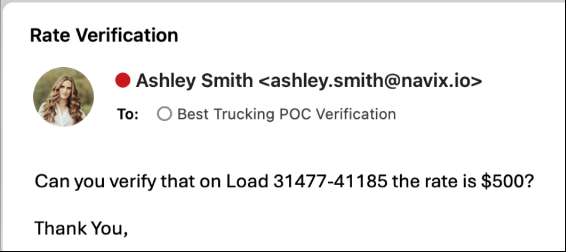
A Rate Verification email comes in
-
The Email Agent identifies it and finds the matching order
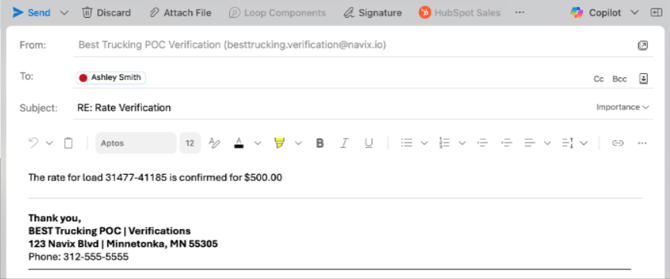
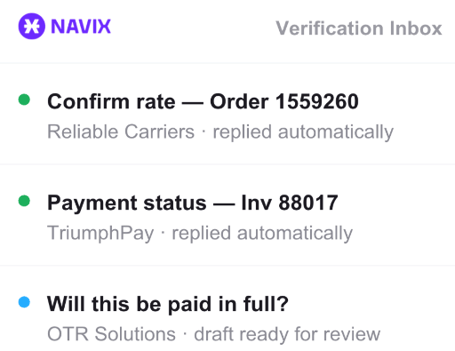
- Either a draft is created for review or a response is sent on your behalf
⚙️ Requirements & How It Works
Email platform: As of August 2026, the Email Agent works with tenants on Outlook / Microsoft Exchange. Support for additional email platforms may be added in the future.
Access: To turn on the Email Agent, you'll provide Navix with login credentials to your Outlook instance. You'll also create a small set of new Categories in Outlook, which the Email Agent uses to label incoming emails as it processes them so your team can see at a glance what the Agent has done with each message.
Scan frequency: The Email Agent checks your inbox every 15 minutes.
What it reads: Every new email that lands in the Inbox is reviewed. A few types of messages are intentionally skipped:
- Replies (RE:) and Forwards (FW:) are always skipped. This prevents a loop where someone trying to reach a human gets an automated reply instead.
- Emails sent from your own company's domain are skipped.
How emails are classified: Every remaining email is sorted into one of these categories:
The Email Agent will reply to:
| Category | Description |
|---|---|
| Rate Verification | A carrier or factor asking you to confirm the rate on a load |
| Payment Status | A carrier or factor asking for the status of a payment or a check number |
The Email Agent will leave these in the inbox for your team to handle:
| Category | Description |
|---|---|
| IDP | The email contains an invoice or paperwork that needs to be routed for document processing |
| NOA | The email is only a Notice of Assignment |
| Other | Anything that doesn't fall into the categories above |
⚠️ A note on Payment Status emails: The Email Agent can only answer a Payment Status question if your TMS contains the payment details Navix needs such as check number, payment date, amount, etc. If your TMS doesn't feed that data back to Navix, we have no financial system or spreadsheet to pull it from, so those emails will be left for your team. If your TMS has this data available and you'd like it supported, let your Navix contact know so we can evaluate adding that integration.
Draft vs. Auto-Reply: You choose how hands-off you want to be:
- Co-Pilot (Draft): The Email Agent drafts the reply and adds it to your Navix Drafts folder. A team member reviews it and hits Send.
- Auto-Reply: The Email Agent sends the reply automatically with no review required.
Most tenants start with Drafts for the first few days to see the Email Agent in action and build confidence in its answers, then move to Auto-Reply once they're comfortable.
🪜 Email Agent step by step
- Reach out to your Navix contact to start the process. This could be a Customer Success Manager or your Sales Rep.
- connect your Outlook/Exchange inbox and create the required Outlook Categories.
- Choose your starting mode: Draft (recommended to start) or Auto-Reply.
- From here, the Email Agent runs on its own:
- It scans your inbox every 15 minutes.
- It reads each new email (skipping replies, forwards, and internal emails).
- It classifies the email as Rate Verification, Payment Status, IDP, NOA, or Other.
- For Rate Verification and Payment Status emails, it looks up the matching order, invoice, and rate in Navix.
- If you're in Draft mode: the reply lands in your Navix Drafts folder, labeled by category, for a team member to review and send.
- If you're in Auto-Reply mode: once the Email Agent finds an exact match, it sends the reply automatically.
- Anything that doesn't get an automatic reply stays in the inbox for your team to handle as usual.
- When you're ready to rely on Auto-Reply, let your Navix contact know and they'll switch your tenant over.
💡 Best Practices
-
Start with Drafts. Give your team a few days or even weeks to review the Email Agent's drafts before turning on Auto-Reply. It builds trust and gives you a chance to catch anything unexpected early.
-
Keep your Navix and TMS data current. The Email Agent only replies on an exact match, so accurate, up-to-date order, invoice, and rate data means more emails get answered automatically.
-
Watch your Outlook Categories. They're your at-a-glance record of what the Email Agent has done with each email. Use them to spot trends or spot-check accuracy.
- Loop in your Navix contact on Payment Status gaps. If your team notices Payment Status emails aren't being answered, check whether your TMS is feeding payment data back to Navix.
📑 Frequently Asked Questions
Does the Email Agent work with any email provider? Not yet. As of August 2026, it supports Outlook/Microsoft Exchange only. Additional platforms may be supported in the future.
What do I need to provide to turn this on? Login credentials to your Outlook instance, and a small set of new Categories created in Outlook that the Email Agent uses to label incoming emails.
How quickly does the Email Agent respond to a new email? It scans the inbox every 15 minutes, so most emails are picked up and processed within that window.
Will the Email Agent reply to every email in my inbox? No. It only replies to Rate Verification and Payment Status emails. IDP documents, Notices of Assignment (NOA), and anything else it can't confidently classify are left in the inbox for your team. Nothing is auto-replied to unless it's an exact match on a supported category.
Will it accidentally reply to my own team's emails, or get stuck in a loop with a carrier? No. Replies (RE:) and Forwards (FW:) are always skipped, and so are emails sent from your own company's domain. The Email Agent won't respond to internal threads or trap a carrier in a loop when they're trying to reach a person.
Why isn't the Email Agent answering Payment Status emails for us? It can only answer Payment Status questions if your TMS is feeding payment details (check number, payment date, amount, etc.) back into Navix. If your TMS has this data but is not yet feeding to to Navix, tell your Navix contact.
What's the difference between Draft and Auto-Reply mode? In Draft (Co-Pilot) mode, the Email Agent writes the reply and puts it in your Navix Drafts folder for a team member to review and send. In Auto-Reply mode, it sends the reply automatically once it finds an exact match with no review needed.
Can we start with Drafts and switch to Auto-Reply later? Yes! Most tenants do exactly this. Start with Drafts for a few days or weeks to build confidence, then let your Navix contact know when you're ready to move to Auto-Reply.
Will this replace my team? No. The Email Agent only takes on the repetitive, exact-match questions like Rate Verification and Payment Status. Everything else is left in the inbox for your team, exactly as it is today.
🙋 Need Help?
If you’d like help enabling the Navix Email Agent:
Submit a ticket through the Navix Support Center.