![Navix Logo - Purple-1.png]](https://hs.navix.io/hs-fs/hubfs/Navix%20Logo%20-%20Purple-1.png?height=50&name=Navix%20Logo%20-%20Purple-1.png)
🗒️Overview
🪜 Margin Calculator Step by Step
📊 Example Walkthrough
🗒️ Overview
The new Margin Calculator eliminates manual rate math.
Instead of calculating markups line by line, enter a margin percentage and Navix will automatically populate updated customer charges in the Charge Grid (before anything is saved). Review the results, make edits if needed, and then save.
The Margin Calculattor includes:
-
Uplift-based rate calculation (margin as % of cost) — Enter a margin % and Navix calculates the uplift amount based on vendor (carrier) costs
-
Flexible application scope — Apply uplift to Linehaul Only (Base Rate) or All Charges
-
Grid-first review before saving — Calculated charges populate in the Charge Grid but are not saved until you click Save
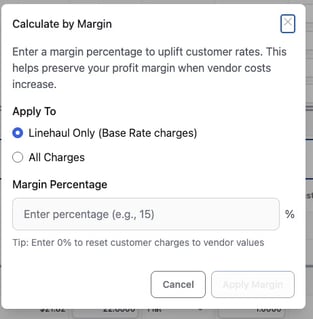
Important notes:
- Vendor charges are never modified. Only Customer charges are updated.
- Calculated charges populate directly in the Charge Grid and remain unsaved until you click Save.
- If you haven't saved yet you can still cancel the margin calculation. Click Cancel to discard the populated values and recalculate.
-
Navix uses the uplift (markup) formula, where margin is expressed as a percentage of cost:
- Uplift ($) = Vendor Cost × Margin%
- Customer Charge = Vendor Cost + Uplift ($)
🪜 Margin Calculator Step by Step
Step 1: Open the Margin Calculator
From the Customer Charges tab in the Charge Grid, click “Calculate Margin.”
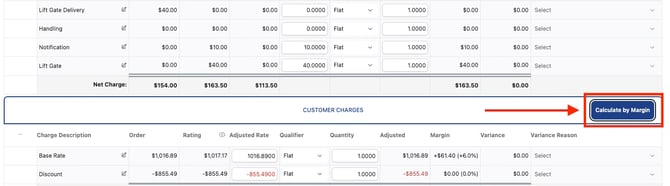
Step 2: Choose Your Application Scope
Select which charges should receive uplift:
• Linehaul Only
Applies uplift to the Base Rate charge only.
Best when accessorial charges should remain at cost.
• All Charges
Applies uplift across every charge line.
Use this when your margin target applies to the full shipment cost.
Step 3: Enter Your Margin Percentage (Uplift)
Enter your desired margin percentage.
Navix calculates uplift as a percentage of cost:
Uplift ($) = Vendor Cost × Margin%
Customer Charge = Vendor Cost + Uplift ($)
✅ This matches common customer expectations:
On a $1,000 vendor cost, a 20% margin produces $200 uplift.
Example:
-
Vendor Cost: $1,000
-
Margin: 20%
-
Uplift: $1,000 × 0.20 = $200
-
Customer Charge: $1,000 + $200 = $1,200
Step 4: Review Changes in the Charge Grid (Not Saved Yet)
When you click Apply Margin, Navix populates the updated customer charges directly in the Charge Grid.
Important notes:
-
The calculated values are not saved yet
-
You can review the changes right in the grid
-
You can edit any charge lines manually before saving
Step 5: Save or Cancel
✅ Save
If everything looks correct, click Save to commit the updated customer charges.
↩️ Cancel
If the result is off (wrong scope, wrong margin %, etc.), click Cancel to discard the populated values and recalculate.
📊 Example Walkthrough
Scenario:
Carrier invoice total: $1,200
-
Base Rate: $1,000
-
Fuel: $150
-
Lumper: $50
Goal: 20% margin (uplift) on Linehaul Only
Steps:
-
Open Margin Calculator
-
Select Linehaul Only
-
Enter 20%
-
Click Calculate — the grid populates:
-
Base Rate: $1,000 → $1,200 (adds $200 uplift)
-
Fuel: $150 (no uplift)
-
Lumper: $50 (no uplift)
-
Grand Total: $1,400
-
-
Review in the grid
-
Click Save to commit
If the scope or percentage is wrong, click Cancel and recalculate.
🔜 What’s Next (Future Phases)
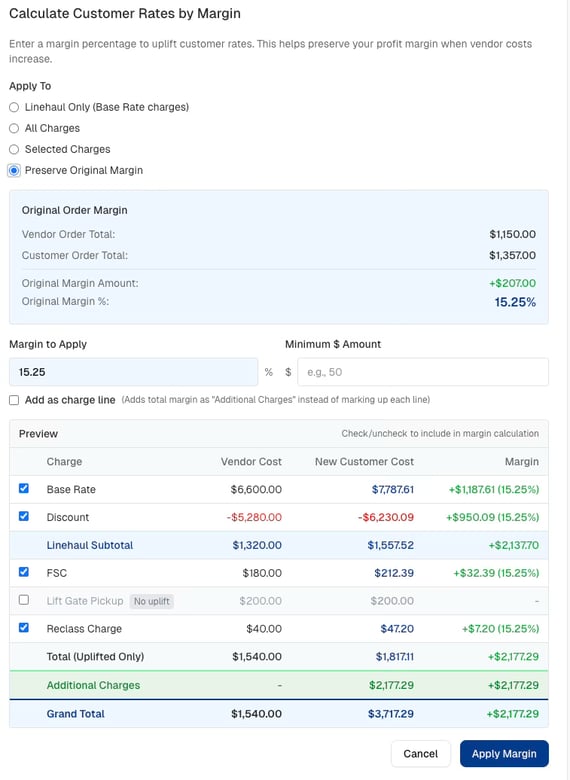
We’re continuing to build on the Margin Calculator with additional capabilities.
➕ Add as Charge Line (Transparent Brokerage)
For broker models that prefer pass-through carrier costs, we’ll add an option to apply margin as a single line item instead of marking up each charge.
How it will work:
-
Customer rates remain equal to vendor costs (pass-through)
-
Total margin is added as a single “Additional Charges” line item
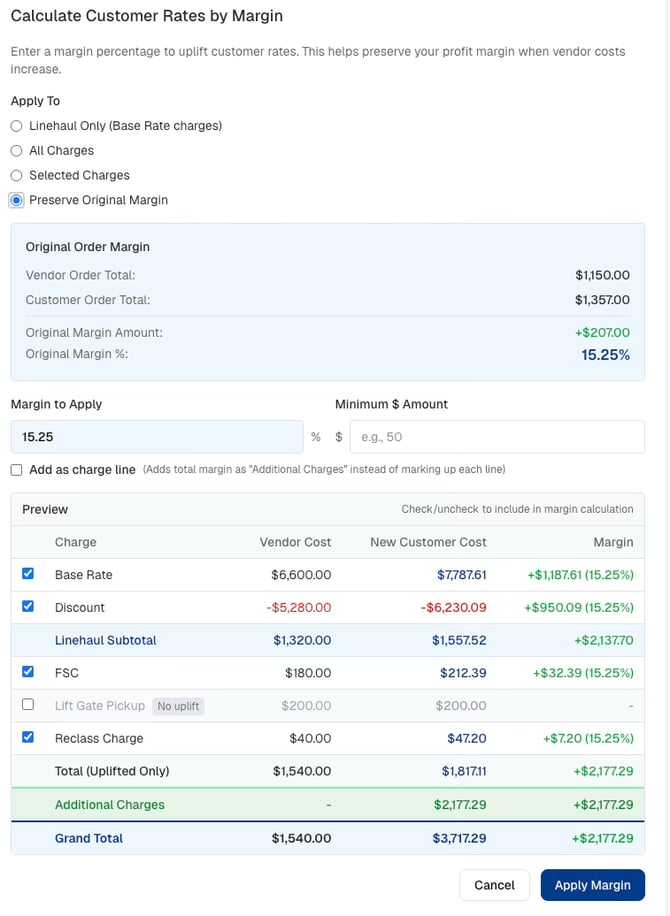
🔄 Preserve Original Margin
When a carrier invoice comes in different from the original order, your margin can shift.
Preserve Original Margin will detect the margin from the original Order charges and reapply it to Vendor Adjusted totals — keeping margin consistent without manual recalculation.
Planned workflow:
-
Select Preserve Original Margin
-
Navix calculates the implied margin from the original Order charges
-
Key charge types included by default (Base Rate, Discount, Fuel, Additional Weight, Deficit Weight, Reclass)
-
Checkboxes let you include/exclude charges and see the margin update dynamically
💰 Minimum Dollar Protection + Flat Dollar Mode
For smaller shipments where percentage margins aren’t sufficient, future updates will include:
-
Minimum Dollar Amount — a margin floor applied to the grand total
-
Flat $ Only — apply a fixed margin amount without using a percentage

🙋 Need Help?
Submit a ticket through the Navix Support Center.